
How To Proofread Email On Android With AI Checks
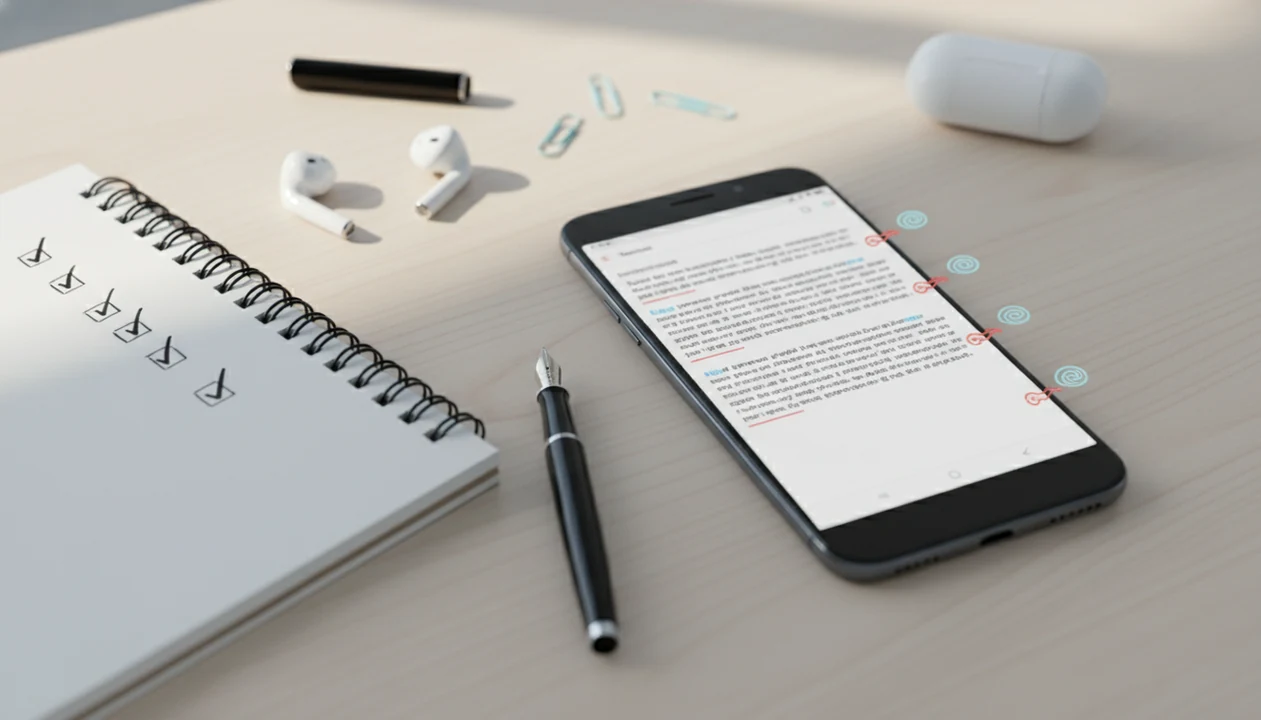
To learn how to proofread email on Android, combine your email app’s spell check, an AI review, and a final manual pass for names, dates, links, attachments, and tone before you tap send. Android tools can catch many grammar and clarity issues, but you still need to verify facts and context yourself.
Email AI is an AI email generator that creates and improves business, career, and personal emails for professionals and teams.
- Use Android spell check and keyboard suggestions first, then run an AI proofreading pass for grammar, tone, clarity, and concision.
- Always manually verify names, recipients, dates, numbers, links, and attachments because AI and spell check can miss context-specific errors.
- For important work, job, or client emails, take a short break and reread the message aloud or with Android text-to-speech before sending.
What an Android email proofreader should check
An Android email proofreader should check spelling, grammar, tone, clarity, factual accuracy, recipients, links, and attachments before the message is sent. Proofreading mobile email is not just tapping the first keyboard suggestion that appears.
The small mistakes matter. In a Pew Research Center survey, 37% of U.S. adults said they felt annoyed when an email contained spelling or grammatical errors, which can make a normal work note feel careless source.
Use AI as a second reader, not the final authority. It can flag a sentence that sounds too sharp, like “Need this today,” but it can’t know whether the invoice reminder beside your cash drawer uses the correct amount. You still own the send button.
Tiny errors travel fast.
Five facts before you proofread mobile email
Before you proofread mobile email, know that phone-based checks work best as a layered process. The strongest routine combines Android tools, AI suggestions, and a human review against the real facts.
- Reread the email from top to bottom on the Android screen, including the subject line and signature.
- Spell check and keyboard suggestions are essential, but they miss homonyms, names, and context.
- Reading aloud or using Android text-to-speech helps catch stiff wording and unintended tone.
- AI tools can suggest grammar, clarity, and tone fixes, but every change needs review.
- Important business or career emails deserve a short break and a final pass.
A 2023 Pew survey found that 81% of U.S. workers use a smartphone to read and send work emails at least occasionally source. Northeastern University also reported that 49% of HR decision-makers said spelling or grammar errors in written communication can lead them to reject a job candidate source.
How Android email proofreading works on a phone
Android email proofreading works in layers: keyboard suggestions, email app checks, AI language review, and human factual verification. Each layer catches a different kind of problem.
Spell check compares typed words against dictionaries and language patterns. Grammar tools look for sentence-level issues. AI review goes further by evaluating context, sentence flow, tone, and possible rewrites. In plain terms, spell check may catch “recieve,” while AI may notice that your follow-up sounds colder than you meant.
Small screens make all of this harder. A half-written reply in a draft window can look fine until you expand the quoted thread and notice the wrong recipient. Increase font size, zoom when possible, and listen to the message before sending. Per the CDC, about 15% of U.S. adults report some difficulty seeing even with glasses or contacts source, so accessibility settings are practical proofreading tools, not extras.
Before you proofread email on Android
Does your Android phone need setup before proofreading email? Yes. Turn on spell check, keyboard suggestions, and grammar suggestions before you rely on the compose window.
Check your Android keyboard settings first, especially if you use Gboard, Samsung Keyboard, SwiftKey, Gmail, or Outlook. For important messages, increase display size or font size so line breaks, punctuation, and quoted text are easier to see. Save the draft before switching to an AI app or browser tab.
Open the source material too. That may be a calendar invite, job post, CRM note, shipping update, or PDF estimate. If you’re using Gmail Gemini or other advanced proofread tools, remember that availability can depend on account type, rollout, device, and platform. Tools like Email AI can help with a rewrite pass, but source documents still settle the facts.
How to use AI to proofread email on Android
Use AI to proofread email on Android by drafting normally, asking for a narrow review, checking the suggestions, and manually verifying every factual detail. The most reliable mobile workflow keeps AI away from unsupported facts.
Think of the workflow as five steps, not ten separate decisions: set up Android checks, draft, run EmailAI, review the changes, and verify the facts. That framing keeps the mobile process fast enough to use before a real send.
1. Set Android writing checks
- Turn on Android spell check, keyboard suggestions, and grammar suggestions where available.
- Increase display or font size if the email is important.
2. Draft the mobile email
- Write the email in Gmail, Outlook, Email AI, or another Android email app.
- Keep the original details visible, such as names, dates, prices, and meeting links.
3. Run an AI proofreading pass
- Ask AI to check grammar, tone, clarity, and missing context without changing facts.
- Use a prompt like, “Can you make this sound less annoyed?”
4. Review AI changes
- Accept only changes that preserve your meaning and voice.
- Watch for extra promises, softer deadlines, or removed details.
5. Verify facts and send
- Check names, dates, numbers, links, attachments, and recipients manually.
- Read the final email aloud or with text-to-speech before sending.
EmailAI fits best in step 3: paste the draft, ask for grammar, tone, clarity, and concision notes, then copy back only the edits you can verify. It should not invent dates, amounts, recipients, promises, or attachments.
Manual Android proofreading checklist for names, facts, and tone
A manual Android proofreading checklist should focus on the errors automated tools often miss: identity, facts, files, links, and tone. Use this when the email affects money, hiring, customers, or deadlines.
- Recipient identity: Check names, company names, titles, email addresses, cc, and bcc.
- Specific facts: Verify dates, times, prices, invoice numbers, addresses, and meeting links.
- Attachments: Confirm every promised file is attached before you tap send.
- Links: Tap each link on Android and confirm it opens the right page.
- Tone: Check whether the message should sound warm, firm, apologetic, urgent, or formal.
A large-scale field study of professional emails found that simpler messages received stronger response rates, with the highest rate around a 3rd-grade reading level source. Simple writing is not childish. It is easier to answer.
For mobile senders, short sentences are often safer than long polished paragraphs because the recipient can act faster.
Common Android email proofreader mistakes
Android email proofreader mistakes usually come from trusting one tool too much. Spell check can miss “their” versus “there,” and AI can smooth a message until it loses the sender’s real intent.
A message may look correct in a small compose box while hiding a broken link, a missing attachment, or the wrong client name. That happens often with replies, where quoted text pushes the actual draft into a tight space. The angry customer email in bold preview can make you fix tone quickly, but it may also make you miss the tracking number.
Proofreading is also about clarity. Ask whether the recipient knows what happened, what you need, and when you need it. If AI turns “Please approve by Friday” into “Please review when convenient,” it has changed the deadline. For tone-specific rewrites, an email tone changer can help, but the final message still needs your context.
Final send check for important Android emails
Before sending an important Android email, take a short break, then reread the full message slowly from top to bottom. A two-minute pause is often enough to notice the sentence you skipped while drafting.
Start with the subject line, especially the tiny field that gets rewritten three times before sending. Then check the greeting, first sentence, call to action, closing, attachments, and recipients. Use Android text-to-speech or read aloud to catch rhythm and tone issues. The ear catches what the thumb ignores.
For job applications, client updates, formal complaints, or legal and technical details, consider sending from desktop instead. Tables, long attachments, signatures, and tracked details are easier to inspect on a larger screen. For high-stakes emails, proofreading on Android is often a first pass, while desktop review is safer for complex formatting.
Limitations
Android proofreading can reduce mistakes, but it cannot guarantee a correct email. Treat every automated suggestion as a draft edit, not a decision.
- Small Android screens make subtle grammar, formatting, and layout issues harder to spot.
- Built-in spell check and grammar suggestions can miss jargon, names, homonyms, and context-sensitive mistakes.
- AI proofreaders may introduce factual errors if you accept changes blindly.
- AI tools cannot reliably verify private calendar details, contract terms, locations, or attachments without your review.
- Some Gmail, Gemini, or advanced proofreading features may require paid accounts, rollout access, or desktop use.
- Over-rewritten emails can sound generic, especially in apologies, salary notes, and client replies.
- Mobile switching creates risk. Copying text between apps can drop formatting or older edits.
Use AI for the rewrite pass. Use your records for the truth.
FAQ
How do I proofread an email in Gmail on Android?
Draft the email, use Gmail and keyboard suggestions, run an AI check if available, then manually review names, dates, links, attachments, recipients, and tone. Read the final version aloud before sending.
Does Android have spell check?
Android and many Android keyboards offer spell check, autocorrect, and writing suggestions. Availability depends on your keyboard, device settings, language, and email app.
Can AI proofread email drafts?
Yes, AI can review email drafts for grammar, clarity, tone, structure, and wording. You still need to verify facts and accept only the suggestions that fit the message.
Is Gmail Proofread available on Android?
Some Gmail or Gemini proofreading features may be limited by account type, rollout, device, region, or desktop availability. If it is not available, use Android keyboard checks plus a separate AI proofreading workflow.
How do I check email tone on Android?
Read the message aloud, ask AI for tone feedback, and compare the wording with your relationship to the recipient. The tone should match the situation, such as formal, friendly, firm, apologetic, or urgent.
What should I check before sending an email from Android?
Check the recipient, subject line, names, dates, numbers, links, attachments, tone, and call to action. Confirm the email says exactly what the recipient needs to know or do.
Can Android read emails aloud?
Yes, Android accessibility and text-to-speech features can help read email text aloud. Listening can reveal awkward phrasing, missing words, and tone problems that are easy to miss on screen.